This applies to Lawman 4.9
You must be logged in as an Administrator
Normal instances you will have a mapped L drive on your computer. If not consult with you local systems administrator.
Navigate to "L:\system files\Installation Files" or some servers may reference as Deployment "L:\system files\Deployment"
Copy "deploy72_7.341.exe" to "C:\temp" if the destination folder doesn't exist create it.
Start a command prompt session with administrator rights. Windows start "cmd" among the choices will be "run as administrator"
at cmd prompt type "CD C:\TEMP"
at cmd prompt type "DEPLOY72_7.341"
This will start the ASNA runtimes installation program.
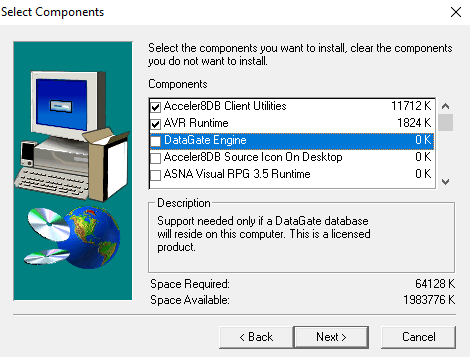 Make sure the following components are selected:
Acceler8DB Client Utilities
AVR Runtime
ASNA Visual RPG 4.0 Runtime
IsScriptEngine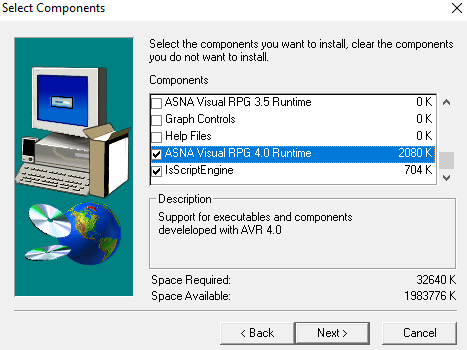
Click Next
An error popup for SQL is normal, 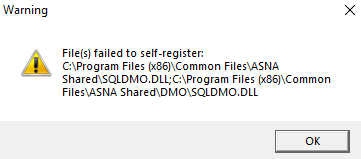 just click OK then Finish
You can close the CMD prompt we don't need it any longer
At the "L:\system files\Installation Files" you should see "Lawman_5_2_Core_Workstation_Setup.exe"
If "Lawman_5_2_Core_Workstation_Setup.exe" does not exist in that folder:
You can download it with the Messenger Agent on the Lawman server.
Click DOD.
Use the listbox to find the file
Click Download
This downloads to L:\exe files\current
Locate it there and copy to the deployment folder
Right click on "Lawman_5_2_Core_Workstation_Setup.exe" and RUN AS Administrator.
Follow all the prompts and accept the defaults.
At the end if you get an error then you will need to do this step.
Navigate to "C:\Program Files (x86)\Common Files\Lawman Shared"
Run "LawmanDatabaseTools"
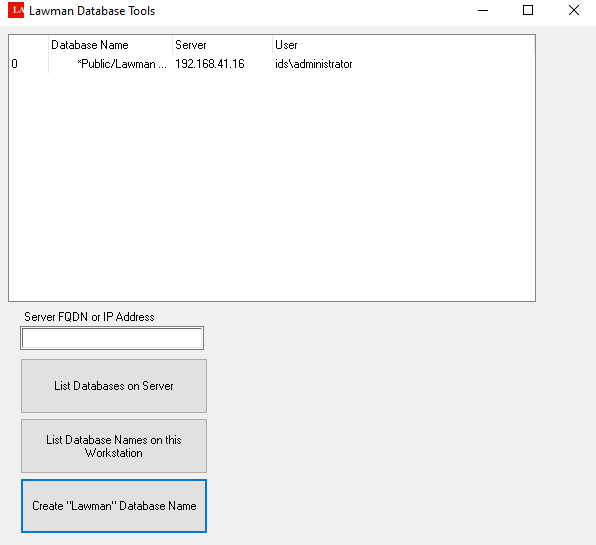
Enter the Lawman server name or IP address
Click "Create Lawman Database Name"
Close tool
Navigate to C:\program files(x86)\Lawman and set folder Security to FULL access for "Users","Domain Users", "Domain Administrators" -- or just set to Everyone
Locate License file and copy to c:\program files(x86)\Lawman folder
Locate existing shortcuts in L drive or create new shortcuts
To create new shortcuts:
Right click and add new shortcut
Destination will be exactly the following :
for LAWMAN use
"L:\exe files\currrent\LawmanBootStrap.exe" Lawman
for REPORTS use
"L:\exe files\currrent\LawmanBootStrap.exe" Reports
for COUNTY JAIL use
"L:\exe files\currrent\LawmanBootStrap.exe" CountyJail
You will need to right click the shortcut and update the Start In folder to c:\Program Files(x86)\Lawman
otherwise you will be a message indication unlicensed.
Was this article helpful?
That’s Great!
Thank you for your feedback
Sorry! We couldn't be helpful
Thank you for your feedback
Feedback sent
We appreciate your effort and will try to fix the article